Complete the first inspection
The setup is finished. Running one delivery through it end to end confirms that the pieces are connected, and it is worth doing before the process is handed to the warehouse.
Receive a delivery
Create a purchase order for the tomato item from any vendor, assign a lot number on the item tracking lines, and post the receipt.
Posting fires the trigger, which creates one check per received lot, assigns it to the INTAKE team, and builds it from the TOMATO plan.
Open the check
Open the Quality Control App page. The new check is listed with the document that raised it, the item and lot it covers, and the team it belongs to. Its status is New until someone starts entering answers.

Only members of the INTAKE team and users marked as a quality control manager can see and work on it.
Answer the questions
Work down the check. The delivery-level questions come first, then each sample in turn:
| Question | What to enter |
|---|---|
| Damaged Boxes | Yes or No for the consignment as it arrived |
| Pallet Photo | A photo of the pallet |
| Brix | The sugar reading, taken once for the delivery |
| Sample Quantity | How many tomatoes were examined in this sample |
| Tomato Color | The ripeness stage of the sample |
| Product Temperature | The pulp temperature of the sample |
| Bruised Count, Decay Count, Discolor Count, Mold Count | How many tomatoes in the sample showed each defect |
| Product Photo | A photo of the product |
Answers marked with an asterisk are compulsory. As the counts are entered, Minor Damage and Major Damage fill in on their own, and each answered line shows whether it passed, passed with a warning, or failed against its target.
Repeat for the second sample. Both samples must be completed — the counts and the sample quantity are mandatory on each.
Post the check
Select Post. The check is graded at that moment: the scores are evaluated in sequence, and the first one whose criteria are all satisfied is assigned.
The posted check shows the grade beside the result, and the lot now carries the inspection status that grade applied:
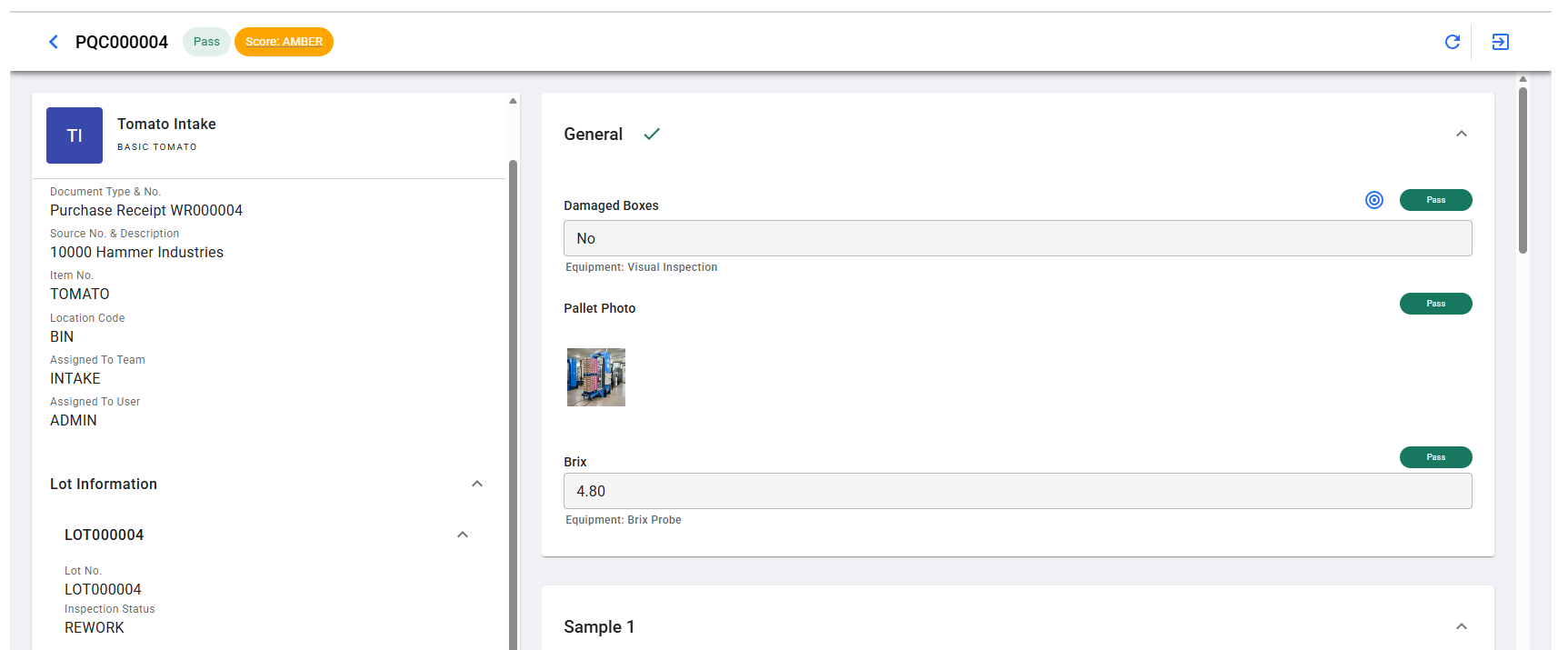
Confirm the outcome reached the lot
Three things should have changed outside the check itself. Open the Lot No. Information card for the received lot to see them:
| What to check | Expected |
|---|---|
| Inspection Status | QC PASS, REWORK, or QC FAIL, matching the grade — with the quality control reason code recorded alongside it |
| Brix lot attribute | The sugar reading entered on the check |
| Lot availability | A lot at QC FAIL is blocked from sales, production consumption, and transfers. A lot at REWORK is blocked from sales and transfers but can still be consumed in production. |
The last row is the one worth testing deliberately. Add the lot to a sales order and confirm it is refused, then add it to a production order component line and confirm the REWORK case is allowed through. That is the whole chain working: a reading taken at the door decides what the warehouse may do with the stock.
For more information about working through checks, see Process quality control checks and Post the quality check.
Back to Walkthrough: Tomato Intake