Post the quality check
Posting a quality check finalizes it, scores it, and creates any quality control actions required by the plan. Once posted, the check is read-only and moved to the posted quality control checks.
Post the quality check in the Quality Control App
Select Post on the action bar. A confirmation dialog appears listing what happens when the check is posted:
- The check is scored.
- Quality control actions may be created.
- After posting, you are redirected to the posted check — or, if the Show QC Completion Message toggle is turned on in the Quality Control Setup, you have the option to view the posted check or navigate to the created quality actions.
Select Post to confirm, or Cancel to return to the check.
If any validation fails — for example, a mandatory question is unanswered, a required comment is missing, or the sample count is below the minimum — an error appears inline in the questions area. Correct the issue and select Post again.
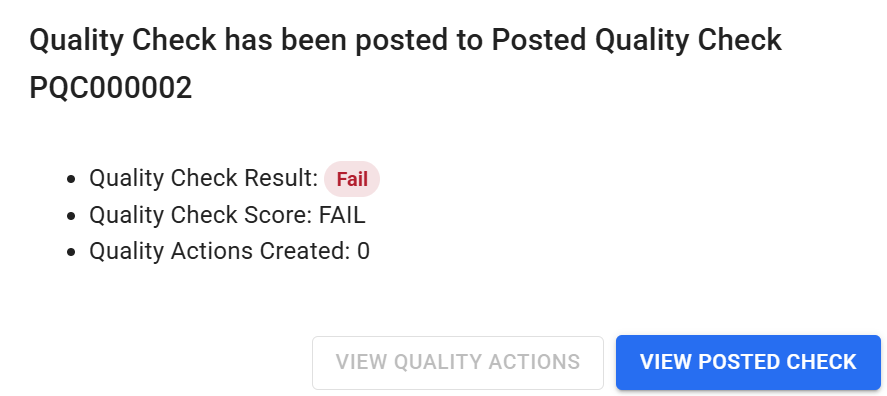
When the Show QC Completion Message toggle is turned on in the Quality Control Setup, a summary dialog appears after posting completes. It shows the quality check result, the score, and the number of quality actions created. Select View Posted Check to open the posted check, or View Quality Actions to navigate to the quality actions tab. View Quality Actions is not available if no quality actions were created.
Post the quality check in Business Central
Open the quality control check from the Quality Control Checks list and select Post on the action bar.
A confirmation dialog appears asking whether to post the document. Select Yes to proceed. The following validations run before posting completes:
- All mandatory questions must be answered.
- The number of samples must meet the minimum required by the quality control plan.
- Sample sizes must not be empty.
- Any option question configured to require a comment for the selected value must have a comment entered.
If a validation fails, an error message describes the issue. Correct the check lines and select Post again.
After posting, a prompt appears offering to open the Posted Quality Control Check. Select Yes to open it, or No to remain on the current page.
When the Aptean Non Conformances extension is installed, you can raise a non-conformance document against the posted check and review the non-conformance documents already linked to it. For more information, see Aptean Non Conformances.