View quality control check score on posting
When a quality check is posted, it is scored based on the scoring configuration on the quality control plan. The score code assigned to the check reflects the overall quality outcome — for example, Pass, Fail, or Conditional — and is shown with a color indicator that is configured on the score code itself. For more information on score configuration, see Quality control scores.
View the score in the Quality Control App
After a quality check is posted, a score chip appears in the header of the check showing the assigned score code. The chip color matches the color configured for that score code in the quality control scores setup.

Select the score chip to open the Score details dialog. The dialog shows the assigned score code and overall result at the top, followed by a table listing the scoring criteria used to calculate the score. The table includes the following columns:
- Measurement — the scoring criterion and its description.
- Criteria — the calculation and threshold applied.
- Measured — the actual value recorded against the criterion.
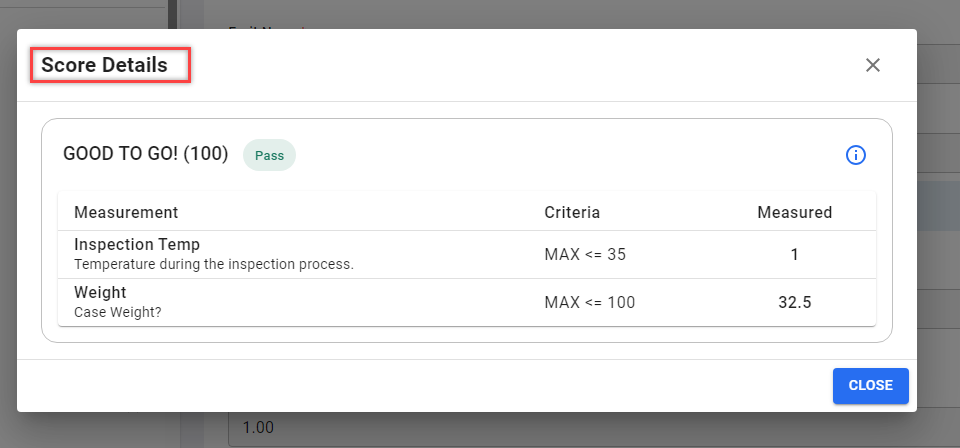
Scoring plans can include a fallback score code that is assigned when no specific criteria are met. Fallback scores are configured without criteria, so the Score details dialog shows no rows in the criteria table when a fallback score has been assigned.
Select the information icon in the Score details dialog to open the Plan Scoring dialog, which shows the full scoring table for the quality control plan with the received score highlighted.
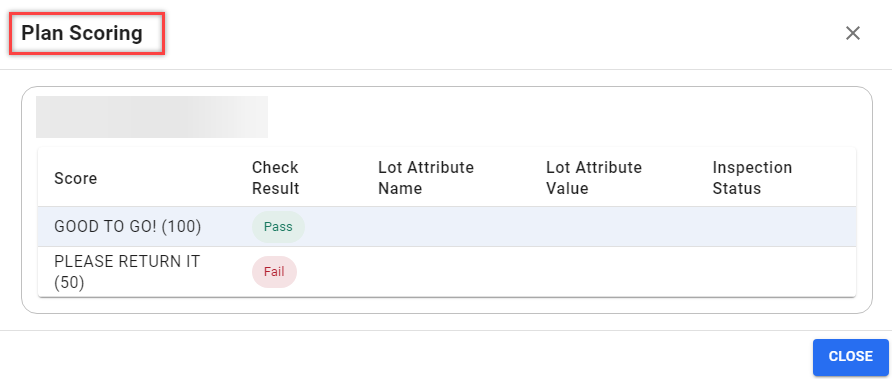
For example, to understand why a check received a Conditional score, select the score chip, review which criteria were not fully met in the table, and select the information icon to see where the result falls within the full scoring range.
View the score in Business Central
The QC Score field and Score Icon column are shown on both the Quality Control Checks list and the Posted Quality Control Checks list, making it easy to see the assigned score code and its configured icon at a glance without opening individual records.
On the Posted Quality Control Check card, the QC Score field and score icon are also shown. The Scoring FactBox shows the score code, check result, lot attribute name, and inspection status for the selected line. For more information, see View quality check details.
In Business Central, scoring does not have to happen at the same time as posting. On the Quality Control Check card, select Score on the action bar to calculate the score before posting. To remove a previously calculated score, select Clear Scores.