View target values for quality check questions
Target values define the ideal and acceptable ranges for a question's answer. When configured on the quality control plan line and not set as blind, they can be viewed as a visual chart during a check.
View targets in the Quality Control App
Select the more actions icon  on a question row to open the action menu, then select Show targets. Show targets is not available when the target blind option is set for the question or when no targets are defined for it.

The Target dialog opens and shows a vertical bar chart with the configured target values. The chart displays the following bands from top to bottom:
- Upper Limit — displayed in red at the top.
- Upper Warning — displayed in yellow below the upper limit. Labeled Warning on the chart.
- Target — displayed in green at the center. This band is always shown.
- Lower Warning — displayed in yellow above the lower limit. Labeled Warning on the chart.
- Lower Limit — displayed in red at the bottom.
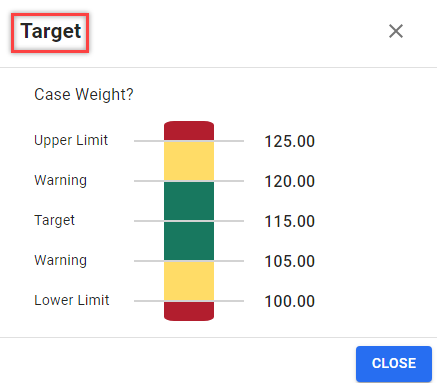
Bands for values that are not configured on the quality control plan line are not shown. If a unit of measure is specified on the question line, it is shown alongside each value on the chart.
On posted checks, a target button appears directly on the question row instead of in the more actions menu. Select it to open the same Target dialog.
For example, to verify that a recorded temperature measurement falls within the acceptable range, select the more actions icon on the question row, select Show targets, and review the chart to see where the answer falls relative to the warning and limit bands.
View targets in Business Central
Target values for the selected question line are shown in the Targets FactBox on both the Quality Control Check card and the Posted Quality Control Check card. For more information, see View quality check details.