Production order overview
The Production Order Overview page provides an overview of and serves as a base of operations for the selected production order. It consists of several tiles and the action bar.
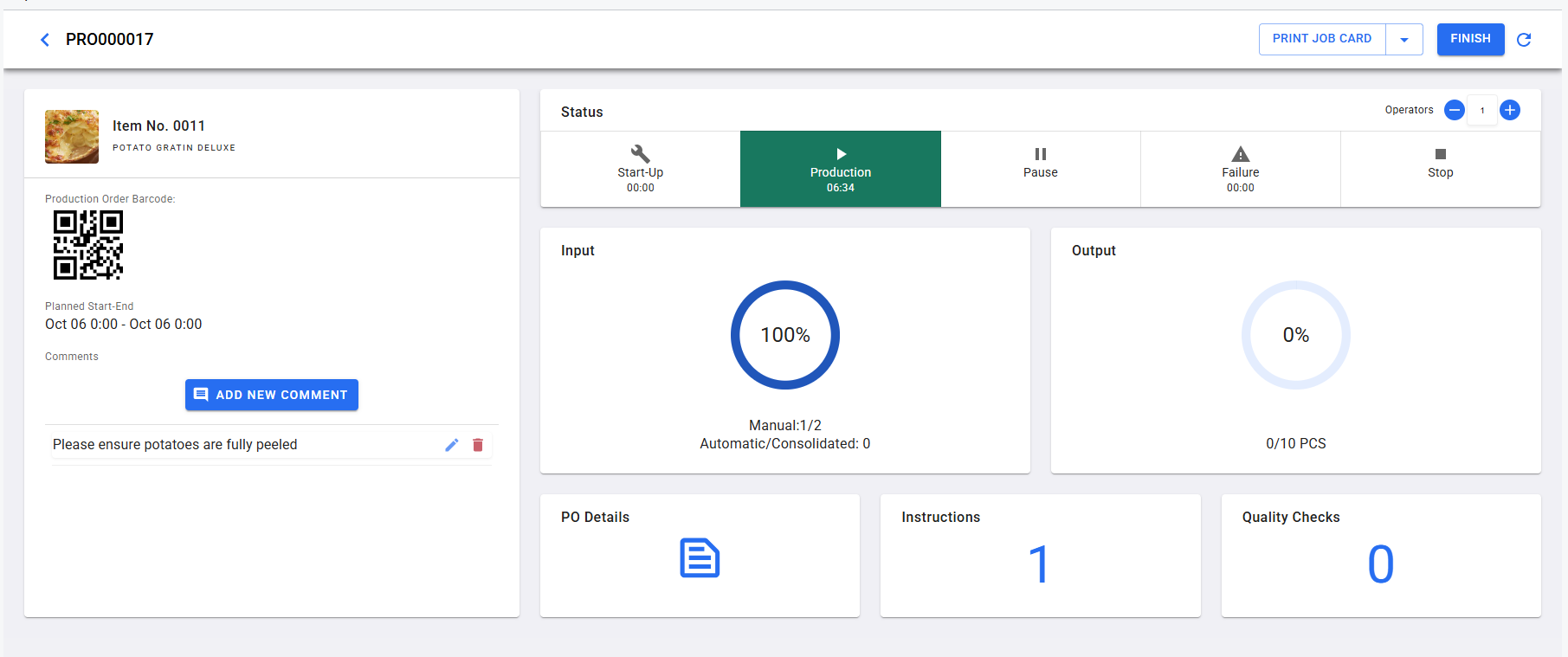
Summary tile
The summary tile is on the left side of the overview page and displays the following:
- the source of the production order — item and production family sources are supported in Shop Floor
- the source description
- an image of the item
- a barcode or QR code of the production order number
- the planned starting and ending time of the operation
- production order comments
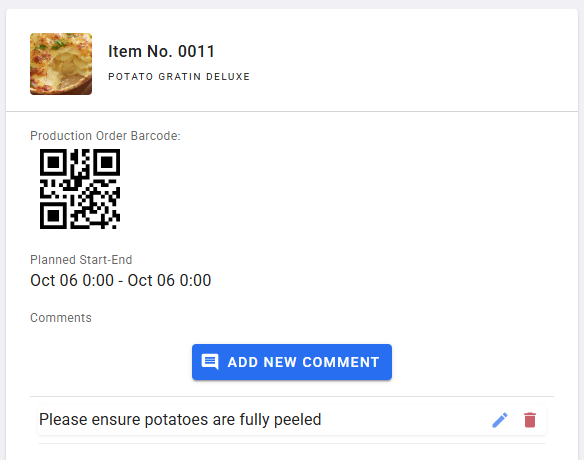
Display barcode or QR code
The production order displays the barcode or QR code of the associated order based on the value defined in the Display Barcode on Production Order setting on the Shop Floor Production Setup page.
Production order comments
Existing production order header comments can be at the bottom of the summary tile. Existing comments can be edited by selecting the pencil icon and deleted by selecting the trash bin icon. New production order comments can be added by selecting the Add New Comment button.
Production order status tile
The status tile is how the shop floor status of the production order is set. It consists of the operator counter and the status buttons.
Number of operators
To record time entries for labor costs, it is important to indicate how many operators (employees) are working on the order. The default number of operators is determined by the Default No. of Operators setting in Shop Floor Production Setup.
You can click the plus or minus icon to enter the number of employees working on the order. You can change the number of operators when the production order routing status is Not started, Paused, or Stopped.
Status buttons
Production orders in Shop Floor can be in one of seven statuses:
- Not Started: The default status of a new production order.
- Start-Up: Preliminary work has started on the production order. Time spent in this status is posted as capacity ledger entries.
- Production: Work is in-progress on the production order. This is the required status in order to register consumption or output against the production order. Time spent in this status is posted as capacity ledger entries.
- Pause: Work is paused.
- Failure: Some sort of unexpected issue has caused work on the production order to stop.
- Stopped: Work on the production order has stopped, but the order is not marked as completely finished.
- Finished: Work on the production order has been completed, and no additional registrations are expected.
To change the status of the production order, simply click on the desired status button. The selected status button will change color upon success.

When selecting the Start-Up, Production, or Failure status, a counter will begin updating beneath the name of the status. The counter tracks how long (in hours and minutes) the production order has been in that status this run.
The status counters are not cumulative. If you spend one hour in Production status, pause the production order, then resume production, the counter will restart at 00:00 instead of starting at 01:00.
Production failures
When selecting the Failure status, a pop-up will request from the user a reason for the failure. Users can select a failure code and provide any additional details in the text box. Because the cause of a failure may not be immediately known, users are not required to submit a failure reason at the time of switching production order status to Failure. However, a failure code is required by the time the status is changed away from Failure.
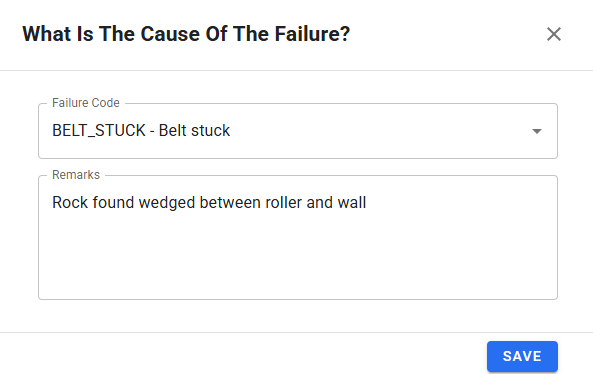
For more information on setting up failure codes, see Setting up failure codes.
Input tile
The input tile provides information about this production order's consumption. A progress wheel gives a visual indication of how much of the expected consumption has been completed, and the text below the wheel shows the user how many components have been consumed up to the expected amount alongside the number of forward- or backward-flushing items.
Clicking on this tile navigates to the Inputs screen. For more information, see Inputs
Output tile
The output tile provides information about this production order's output. A progress wheel gives a visual indication of how much of the expected output has been completed, and the text below the wheel shows the user exactly how much output has been completed compared to the expected amount.
The output quantity shown on the Output tile is determined by the Output Display Mode field on the Shop Floor Production Setup page. When set to Total (the default), the tile shows the aggregated finished goods quantity for the entire production order. When set to Routing Specific, the tile shows the output quantity registered at the routing line associated with the current work center. For more information, see Set up shop floor production.
Clicking on this tile navigates to the Outputs screen. For more information, see Outputs
PO Details tile
Selecting the details tile will navigate to the Production Order Details screen. For more information, see Production order details
Instructions tile
The instructions tile shows the total number of work instructions associated with this production order. Selecting the instructions tile will navigate to the Work Instructions screen.
For more information on setting up work instructions, see Work Instructions.
For more information on viewing work instructions, see View work instructions in Shop Floor Production
Quality tile
The quality tile shows the total number of open or in-progress quality control checks associated with this production order. The count of quality checks may be limited to only those with a matching work center if the Limit Quality Check Count by Work Center option is enabled on Shop Floor Production Setup.
Selecting the quality tile will open the Quality Control App filtered to the selected production order.
The quality control check count will be calculated only if the Aptean Quality Control for Food and Beverage (BC) application is installed.
Action bar
The action bar on the Production Order Overview page is home to various actions and pieces of information. This includes:
- The production order number.
- A Print Menu. This menu allows users to print various production reports directly from Shop Floor Production. For more information, see Generate reports.
- A Finish/Reopen button. Selecting the FINISH button will attempt to change the status of this production order to Finished. The REOPEN button is visible on finished production orders, and selecting it will attempt to change the status of this production order to Stopped.
- A Refresh button. Selecting this button will manually refresh the data for this production order.