Quality actions
A quality action records the corrective steps required to resolve an issue identified in a failed quality check. It contains the details from the associated action plan and a list of lines — tasks to complete and questions to answer.
View quality action details in the Quality Control App
Select an action from the Actions tab to open the action detail view. The header displays the item image, the action plan name and code, and the reference item description.
The General section shows the following information:
| Field | Description |
|---|---|
| Posted Quality Check | Specifies the posted check that created this action. Select the value to open the related posted quality check. |
| Item No. | Specifies the item number associated with the action. Hidden when empty. |
| Lot No. | Specifies the lot number associated with the action. Hidden when empty. |
| Location Code | Specifies the location code of the item. |
| Assigned To Team | Specifies the quality control team responsible for the action. |
| Assigned To User | Specifies the user assigned to complete the action. Quality managers can reassign the action using a dropdown on open actions. For all other users, and on posted actions, this field is read-only. |
If the action has a related source document, a Related Source Document section appears with the following information:
| Field | Description |
|---|---|
| Document Type & No. | Specifies the type and number of the source document associated with the action. |
| Source No. & Description | Specifies the source identifier and description. |
| Location Code | Specifies the location code of the source document. |
| Work Center | Specifies the work center linked to the source document. |
For example, if an action was created from a production order, the Related Source Document section shows the production order number and work center.
Complete action lines in the Quality Control App
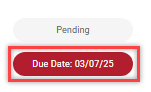
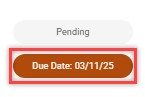
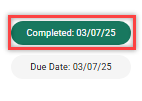
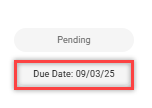
Action lines appear next to the details, sorted by due date in ascending order. Each line shows a due date chip and a status chip. The due date chip uses color to indicate urgency:
-
Red — the line is overdue.
-
Brown — the line is due today.
-
Green — the line is completed.
-
Gray — the line is due in the future.
For Task lines, toggle the answer to mark the step as done. For Question lines, select Yes or No to record the response. The line status updates to complete as soon as an answer is recorded.
If additional instructions are set on the line, they appear as an alert directly below the line description.
If a line has extended instructions configured on the action plan, an information icon  appears on the line. Select it to open the Extended Instructions dialog, which shows the full guidance text for that step.
Select the comment icon  to show the comment field on a line. If a comment has already been entered, the comment field opens automatically. Comments save when you move focus away from the field. On posted actions, comments are read-only.
Select the upload icon  or camera icon
  to attach photos to a line. These icons are not shown on posted actions.
For example, to complete an action that requires verifying a cleaning procedure and answering a temperature question, toggle the cleaning task as done and select Yes or No for the temperature question.
View a quality action in Business Central
Select the Search icon, enter Quality Control Actions, and choose the related link. Open a record from the list to view the Quality Control Action card.
The General FastTab shows the following fields:
| Field | Description |
|---|---|
| No. | Specifies the quality control action number. |
| Posted QC Check No. | Specifies the number of the posted quality check that created this action. |
| QC Action Plan | Specifies the action plan used for this action. |
| QC Team | Specifies the quality control team assigned to the action. |
| Reference Item No. | Specifies the reference item number. |
| Reference Item Description | Specifies the reference item description. |
| Location Code | Specifies the location code of the item. |
| Lot No. | Specifies the lot number associated with the action. |
| Assigned To | Specifies the user assigned to complete the action. Quality managers can change the assignment. |
| Status | Specifies the current status of the action — New or In Progress. |
The Lines subpart lists all action lines for the record. Each line shows its sequence number, action type, description, due date, and current status. Completed lines are highlighted in green; incomplete lines are highlighted in red. For task lines, select the Done toggle to mark the line complete. For question lines, select Yes or No in the Response field. The Completed Date field records when the line was marked complete. To view or add photos, select the value in the Photo column to open the photo list for that line.
To view extended instructions for the selected line, select Extended Instructions on the action bar. This action is enabled only when the selected line has extended instructions configured on the action plan.
To open the associated posted quality check, select Posted Quality Control Check under Related on the action bar.
For example, to review which lines remain incomplete on an action, open the Quality Control Action card and check the Lines subpart for any lines shown in red.