View account details
The My Account Dashboard page provides a comprehensive view of your e-commerce activity. You can check your account balance, review recent orders and invoices, manage language preferences, and access account-related actions like resetting your password.
To open your account dashboard, follow these steps:
- In the header, select the Account icon.
-
Select the My Account Dashboard link.
The My Account Dashboard page opens.
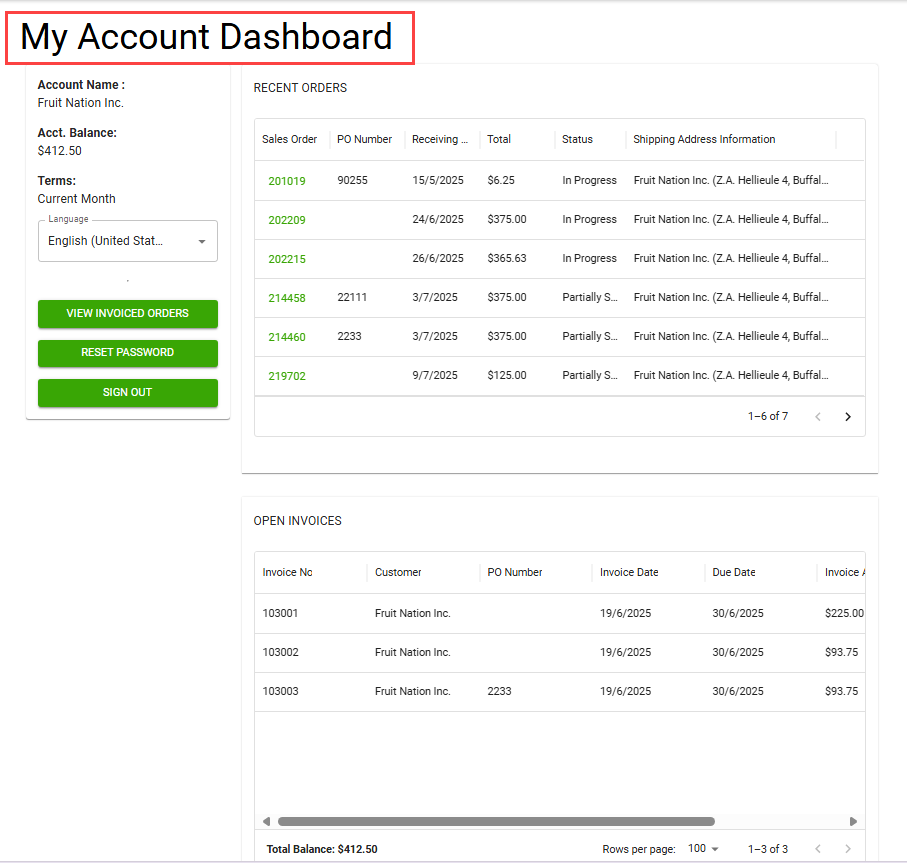
The system displays key account details of the customer in the following fields:
Field Description Account Name Specifies the customer name. Acct. Balance Specifies the current outstanding balance associated with your account. When the Aptean Pay extension is configured and your balance is greater than $0.00, a PAY button appears next to the balance. Select it to open the Aptean Pay payer portal in a new tab and pay your full outstanding balance. To know more, see Pay invoices. Terms Specifies the terms defined for your payment. This value is inherited from the Payment Terms Code field value defined on the Customer Card page in Business Central. Language Select the required option to switch the language of the e-commerce interface. -
Select the following buttons based on your requirements.
Button Description VIEW INVOICED ORDERS Open the Order History page to view posted invoices. REPORTS Open the Reports dialog to request document reports available to your account. This button is visible only when the Aptean Document Publication extension is configured and reports are available for your account. To know more, see Request reports. RESET PASSWORD Send an email with instructions to reset your password. If you do not receive the email within a few minutes, please check your spam or junk folder. SIGN OUT Log out of the e-commerce portal.
The page displays the following sections with detailed order and invoice information.
- In the RECENT ORDERS section, the system displays the list of recent orders along with the related details as follows:
- Sales order number
- PO number (External document number)
- Receiving date
- Order total
- Order status
- Shipping address
You can select an order entry to open a detailed summary of the order. A Reorder button appears in the order detail. Select it to start a reorder based on that order. To know more, see Reorder orders.
- In the OPEN INVOICES section, the system displays invoice records that have been created but have not yet been fully posted.
- Invoice number
- Customer
- PO number (External document number)
- Invoice date
- Due date
- Invoice amount
- Invoice balance
- Pay (visible only when the Aptean Pay extension is configured — select Pay to pay the invoice directly from the list)
Your account dashboard allows you to track your account and order activity from one location.