Correct consumption
To reduce the quantity of a component previously registered to the production order, select the correct consumption action on the Inputs page. The correct consumption action is represented by a pencil icon in the Actions column of the input table.
If only one registration has been posted for a component, selecting the correct consumption action will open the consumption correction screen. If multiple registrations for the item have been completed, selecting the correct consumption action will open the registration listing screen which lists all previous registrations for this item.
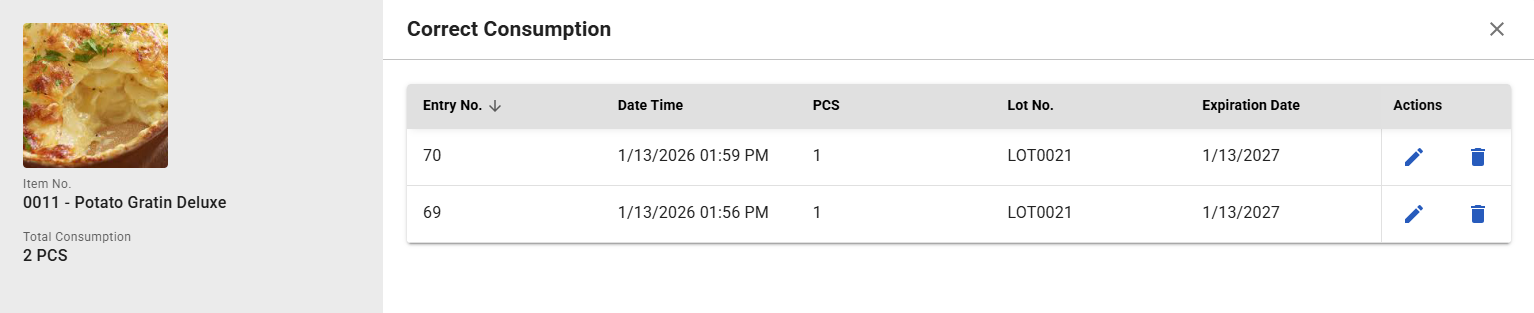
The following columns are shown on the registration list:
| Field | Description | Visibility |
|---|---|---|
| Entry No. | Specifies the item ledger entry number of the registration. | |
| Date Time | Specifies the date and time at which this registration was posted. | |
| Unit of Measure | The header of this column will be the component's unit of measure. Specifies the quantity of the registration. | |
| CAW UoM | The header of this column will be the component's catch weight unit of measure. Specifies the catch weight of the registration. | This column will only be displayed if the component item is a catch weight item. |
| Lot No. | Specifies the lot number of the registration. | This column will only be displayed if the component item is lot tracked. |
| License Plate No. | Specifies the license plate number of the registration. | This column will only be displayed if the component item is license plate tracked. |
| Expiration Date | Specifies the expiration date of the registered lot number. |
For each registration, two actions are available: 1. Edit Registration (Pencil icon) - Opens the consumption correction screen for this component registration. 2. Delete Registration (Bin icon) - Reverses the entire registration. You will be asked for confirmation before the correction is posted.
Consumption correction screen
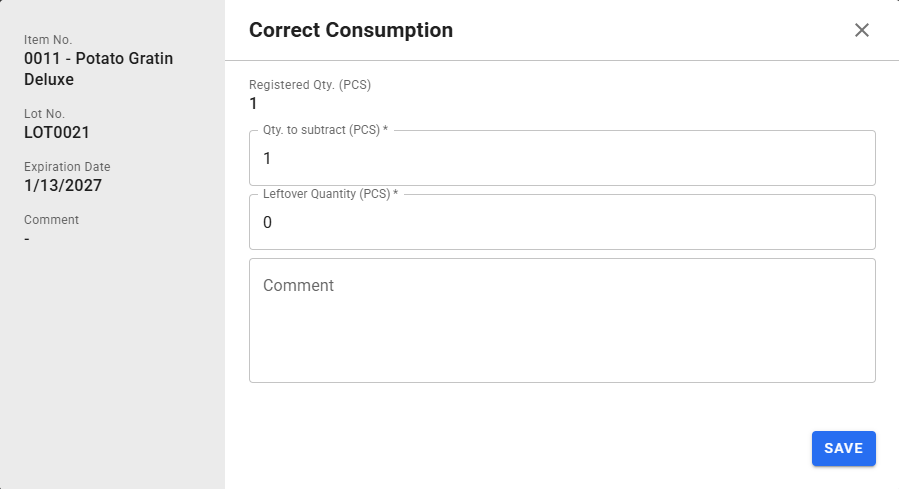
The consumption correction screen is where you specify the exact consumption reversal you are looking to accomplish. On the left-hand side of the screen, a details sidebar shows various pieces of information about the chosen registration including the lot number and expiration date. To correct consumption, follow these steps:
- Enter a quantity to subtract from the existing registration. The default value of this field is the remaining quantity on the registration. Alternatively, you can use the next field to specify a quantity to remain on the registration after correction. Entering a value in one of these two fields will automatically calculate the other.
- Optionally, specify a comment detailing the reason for the correction.
- Select the Save button.
Since the default value of the Qty. to subtract field is the remaining quantity on the registration, reversing the entire registration is as easy as immediately clicking the Save button on the consumption correction screen.
Correct consumption with AWM license plates
You can correct the consumption of license plate-tracked items onto a different advanced warehouse management license plate. This enables flexibility in handling inventory adjustments during consumption corrections.
- Make sure to configure the Aptean Beverage Advanced Warehouse Management for Drink-IT Edition application name on the Feature Control page. For more information, see Overview of feature control.
- Turn on the Allow New License Plate in Consumption Correction toggle on the Shop Floor Production Setup page.
- Configure the Adv. Warehouse Setup page and the Advanced Warehouse Management FastTab on the Item Card page. For more information, see Setup advanced warehouse management.
To correct the consumption with the advanced warehouse management license plates, follow these steps:
- Open the Input page for consumption.
- Select the required record.
The Register Input page opens. - In the License Plate No. field, select the required value.
The dropdown displays the available advanced warehouse management license plates. - In the Quantity field, enter the required quantity for consumption.
- Save the changes to register the input.
- Once registered, you can correct the consumption for the registered input line by using the edit icon.
The Correct Consumption page opens. - In the Qty. to Subtract field, you can modify the value to correct the consumption quantity.
- The To License Plate field displays the advanced warehouse management license plate number (original consumption license plate number) for which the input is registered.
- You can also execute the GET NEW LICENSE PLATE NO. action to generate a new advanced warehouse management license plate number for the corrected consumption quantity.
The system sends a request to Business Central to generate a new license plate number. - Select Save.
The system corrects the consumption onto the original license plate first.
If a new license plate is assigned, the system creates an item reclassification journal transaction to move the corrected quantity to the new license plate.
The journal entry uses the template specified in the Consumption Correction Reclassification Journal Template Name field on the Shop Floor Production Setup page.
You can view the created entries for the corrected consumption on the Detailed Warehouse Entries page.