View the released production orders in a work center/machine center
In Shop Floor Production, you can view and manage released production orders for specific work centers. To view the production orders for a given work center, follow the steps below.
- Select the Search icon
 , enter Shop Floor Production, and then choose the related link.
The Work Center List screen opens. - Select the desired work center Name.
The Production Order List screen opens. - Select the desired production order to be redirected to the Production Order Overview screen.
If a work center has one or more machine centers defined, selecting a work center will redirect to the Machine Center List screen. Once a machine center is selected, the Production Order List screen will display.
Shop Floor Production will pull production orders based on the system date and date formula defined in the Date Formula Show Prod. Order field on the Shop Floor Production Setup page. For example, a date formula of 1D will show production orders with routings starting on the system date or the day after.
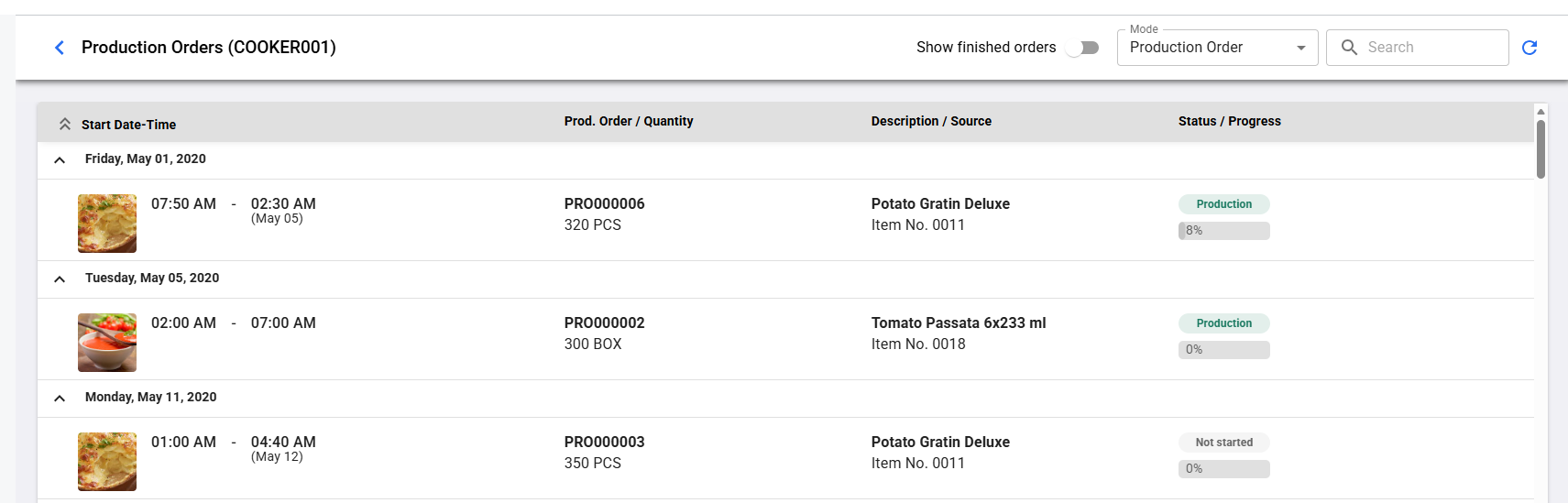
The Production Order List screen displays the following fields:
| Field | Description |
|---|---|
| Start Date-Time (grouped) | Specifies the starting date and time of the production order based on the routing. If enabled, item images will also appear in this column. |
| Prod. Order / Quantity | Specifies the production order number, quantity represented in related unit of measure code and the batches associated with the selected work center. |
| Description / Source | Specifies the description of the production order and the source no. associated with the production order. |
| Status / Progress | Specifies the status of the production order and a progress bar showing how much output has been registered compared to what is expected. The available statuses are Not Started, Start-Up, Production, Paused, Failure, Stopped, and Finished. |
| Input Progress (optional) | Specifies the input consumption progress for the routing line, as a percentage. Not shown by default — add it to a list profile to display it. For more information, see Set up list profiles. |
Your version of Shop Floor Production may include additional data columns alongside the defaults if your system includes custom code extending the capabilities of Shop Floor Production.
The action bar
At the top of all screens in Shop Floor Production is the action bar. The action bar is home to various filters, actions, and pieces of data to assist in the production process. The action bar on the Production Order List screen includes the following: 1. The name of the work center. 2. The Show finished orders toggle. When enabled, the only production orders shown in the table will be production orders finished in Shop Floor Production. 3. The Mode option. This option determines how the user is navigated away from this screen if a valid production order is entered in the Search Bar. This field gets its default value from the Shop Floor User record for this user/work center or the global default on Shop Floor Production Setup. The options are: 1. Production Order: Entering a production order number will redirect the user to the Production Order Overview screen. 2. Input: Entering a production order number will redirect the user to the Input screen and automatically open the Register Input screen if possible. 3. Output: Entering a production order number will redirect the user to the Output screen and automatically open the Register Output screen if possible. 4. The Search Bar. Typing in the search field will perform live filtering on the list of production orders. 5. The Refresh Button. Clicking this button will manually refresh the list of production orders.
Your version of Shop Floor Production may include additional action bar items alongside the defaults if your system includes custom code extending the capabilities of Shop Floor Production.
When referring to production orders as "finished" in Shop Floor Production, this does not mean the order is a finished production order. Only released production orders are included in Shop Floor Production. "Finished" indicates that a user previously selected the FINISH button for that production order.