Purchase Orders
On the Mobile Profile Setup page, if the Enable Purchase Orders description value is set to Yes for home, the Purchase Orders icon is displayed on the home screen of the Aptean Mobile Warehouse app. The icon displays the count of open purchase orders for the user's active location.
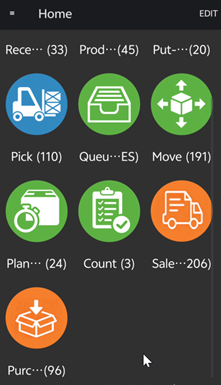
Selecting the Purchase Orders icon opens the Purchase Orders screen, which displays all released purchase orders for your location. Each purchase order card displays the following fields:
- No.
- Vendor
- Receipt No.
- Receipt Status
- Exp. Receipt Date
- Transport Route Code
- Putaway No.
- Vendor Order No.
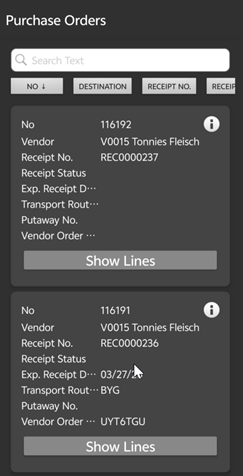
On this screen you can:
- Search and filter purchase orders using the search bar.
- Sort purchase orders by No., Receipt No., Destination, Receipt Status, Exp. Receipt Date, Transport Route Code, Putaway No., or Vendor Order No while selecting the respective buttons. You can drag the sort options to rearrange them.
-
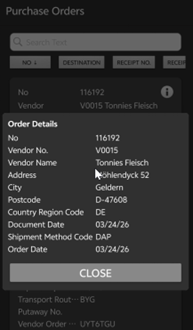
Select the info icon on a purchase order card to view the following additional order details:
- No.
- Vendor No.
- Vendor Name
- Address
- City
- Postcode
- Country Region Code
- Document Date
- Shipment Method Code
- Order Date
-
Select a purchase order card to open the existing warehouse receipt or automatically create a new one.
-
Select Show Lines button to view the lines of the purchase order. Each line displays the following fields:
- Line No.
- Item No.
- Description
- Quantity
- Quantity to Receive
- Quantity Received
- Planned Receipt Date
- Exp. Receipt Date
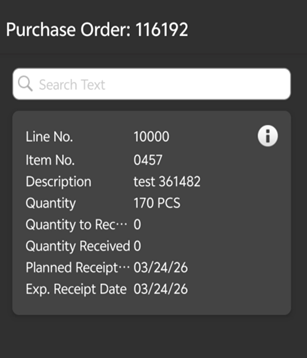
On the lines screen, select the info icon on a line to view the Unit of Measure.
- Select a line card to open the existing warehouse receipt or automatically create a new one. The system automatically selects the item on that line and proceeds to the next step.