Aptean Mobile Warehouse Registration Activity
When opened, the Lot Information page allows the user to specify a lot number.
If the Lot Information page was opened via a quick scan, this information will already be populated. If not, it must be manually entered in the Lot Number field. Physically pressing the Enter button on the handheld device will instruct Aptean Mobile Warehouse Registration to obtain information about the lot record.
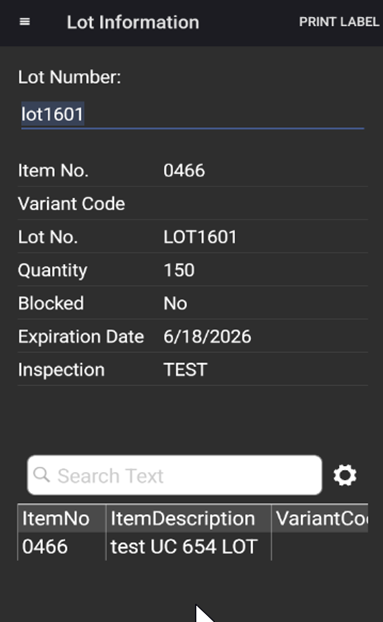
The fields that were assigned to the relevant mobile profile on the Mobile Profile page are displayed.
When a lot number is associated with multiple items, the Item No., Quantity, Blocked, Expiration Date, and Inspection Status field values on the lot information screen are left empty. Instead, a grid is displayed showing the following information for each item associated with the lot:
| Field | Description |
|---|---|
| Item No. | The item number associated with the lot. |
| Item Description | The description of the item. |
| Variant Code | The variant code of the item, if applicable. |
| Quantity | The quantity of the item in the lot. |
| Blocked | Indicates whether the item lot is blocked. |
| Expiration Date | The expiration date of the item lot. |
| Inspection Status Code | The inspection status of the item lot. |
Additional insight into a lot's availability can be obtained by selecting the Availability tab, which presents a list of all bins in which the item lot is stored. The Availability tab includes the Item No. and Variant Code columns, allowing you to identify availability per item and variant when the same lot number is shared across multiple items.
A label containing the lot information can be printed from the handheld device by selecting the Print Label button. When the lot number is associated with multiple items, a line must be selected from the grid before printing. If no line is selected, the system displays an error message.
If a lot number is associated with a single item, the lot information is displayed on the lot information screen as usual, and a label can be printed directly without selecting a line from the grid.
In case the Labelling option has been selected in the Label Printing Method field, the printing of the label is handled by the Aptean Labeling extension. Before being able to print a label, a label must exist which contains 6505 as label subtype. This matches the subtype sent from the API to the mobile device, and the label can therefore be used for printing lot information.
In case the RDLC option has been selected in the Label Printing Method field, the printing of the label is handled with the RDLC report that is selected in the Lot Tag Report ID field on the Mobile Setup page.