Managing open and zero prices
Produce Pro
•
Article
•
7/31/2018
•
6 min
We usually think of open prices more as a Sales topic than a Pricing topic, but since there is some conceptual overlap, it makes sense to address them briefly! We’ll cover the high points in this article.
Overview
In the sales context, Produce Pro distinguishes between types of open prices:
- Open price
- Price out at zero (true zero price; used for samples, donations, incentives, etc.)
- Unpriced
You can decide whether and when to allow open prices. This rule is set in the Sales Orders control file (PD310SO), and you can override the restriction in the Employee master (PD530).
Also, note that a sales order with open priced items cannot be transferred to A/R.
In addition...
- When someone keys in a zero for a price, the system can ask them to confirm the type. This makes it possible to identify sales orders that need attention and to report on open price situations.
- You can require users to key in estimates on open prices, so you can still get reasonably accurate reporting.
- You can decide whether and when to allow users to key in true zero prices (which are distinct from open prices).
- You can decide whether or not orders with open priced items can be shipped. (These settings are in the Shipping control file, PD310SH.)
- You can decide whether to prevent staff from verifying invoices that still have open priced items. (A/R Interface control file, PD310AR)
- You can have the system automatically apply open prices on substituted items at ship time. (This is set in the Pricing control file, PD310PR.) You can override this restriction for individual employees in the Employee master (PD530).
- You can decide whether to include open priced sales orders in the Build Sales Analysis process. (Sales Analysis control file, PD310SA)
Settings
Let’s take a closer look at the relevant settings in the Sales Orders control file:
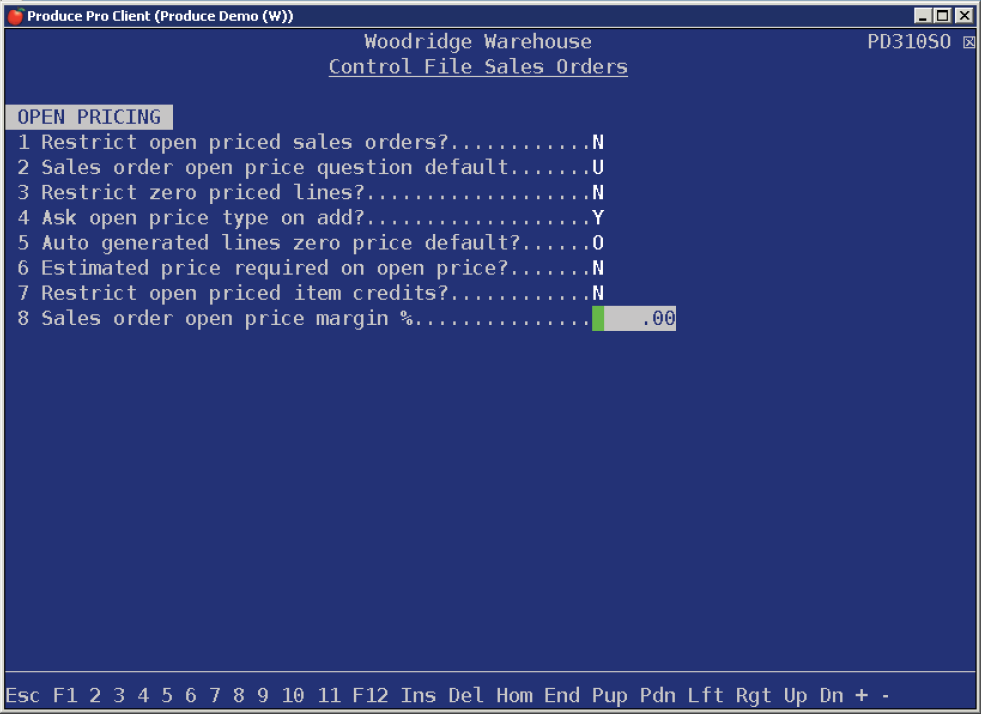
- Restrict open priced sales orders? — This lets you determine whether to allow open prices on any sales order (
A), on cash orders only (C), or only in cases where the item is isolated in its own sales order (S). (This control refers to true open prices, not to actual zero prices.) - Sales order open price question default — When someone keys in a zero price, the system asks which type of open or zero price it is. This setting lets you decide which option is highlighted by default. Choose the one that occurs most often.
- Restrict zero priced lines? — This setting lets you decide when it’s appropriate to allow a true zero price: on any order (
A), on cash orders (C), on same-day cash orders (S), or on charge orders (H). - Ask open price type on add? — This tells the system how to respond when someone keys in a zero price while adding the item in a sales order. Do you want the system to ask for an open price type? (In other words, should it only ask when someone returns later on and changes the price to zero?)
- Auto generated lines zero price default? — If an open priced sales order line is generated automatically, such as with an EDI order, obviously there isn’t someone in front of the computer who can confirm the type right then. This setting tells the system which type to apply in that case.
- Estimated price required on open price? — To ensure that your reporting isn’t unnecessarily skewed while you wait for final figures, you can have the system require an estimate whenever someone enters an open price.
- Restrict open priced item credits — Enter
Yto keep users from issuing credits against open priced items. - Sales order open price margin percent — If you don’t require an estimate, the system uses this default margin for reporting.
Reporting on open prices
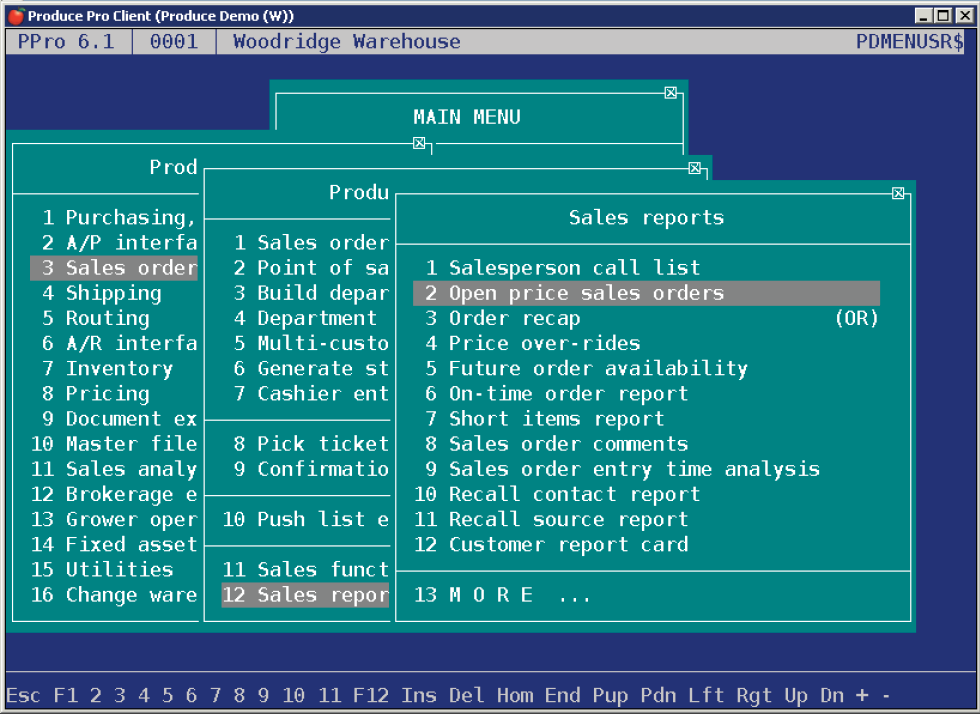
The Open Price Sales Orders report is listed in the Sales Reports submenu.